Optimized Solution
Optimized Solution: An Overview
To generate an optimized solution, the optimizer requires input preference settings, tasks, and vehicles for travel between task locations. For detailed information on how to configure these, refer to the Set Preferences, Add Jobs, Add Shipments, and Add Vehicles sections. Once all input elements are verified and submitted, clicking the “Generate Route” button on the “Input Preview” screen will initiate the route optimization process.
Upon generating an optimized solution, the Route Planner’s “Solution” module provides:
- Comprehensive information about the optimized route plan including the Map View, Timeline View and Route Analytics.
- Calls to action (CTAs) for subsequent steps, such as sharing, editing, or dispatching the route plan.
Let’s go through an interactive demo detailing how to generate, save and retrieve optimized solutions in Route Planner.
Generating an Optimized Solution
An optimized solution can be generated instantly from the “Input Preview” screen. The optimized solution is presented on the “Solution” screen of the Route Planner. Following is a short demo to demonstrate the features available for every optimized Solution:
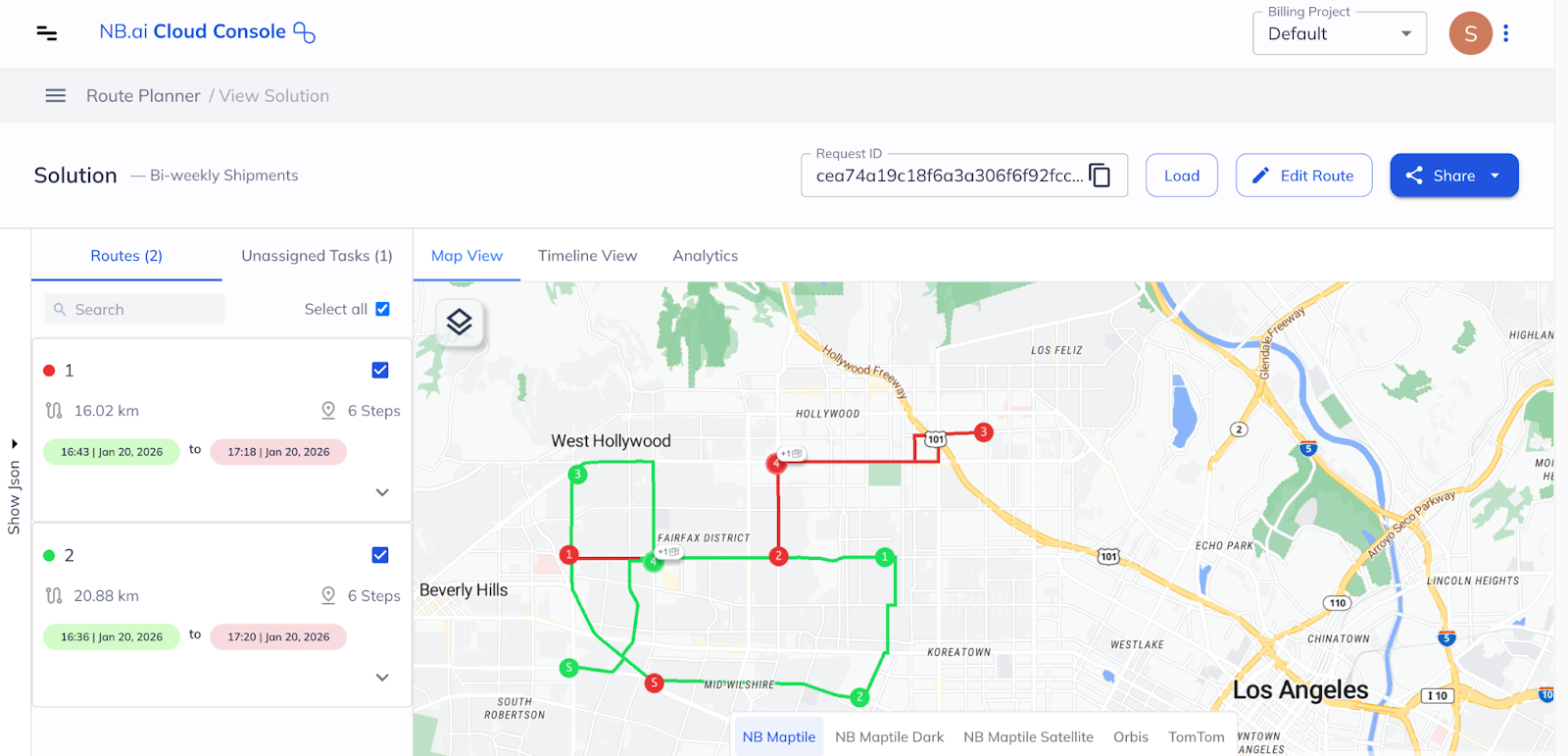
Sometimes due to the size of the input the optimizer may take more time to generate a solution. In such cases, an unique solution ID for the given solution is shared. Users can follow the method described in the “Retrieving an Optimized Solution” section below in such cases.
Saving an Optimized Solution
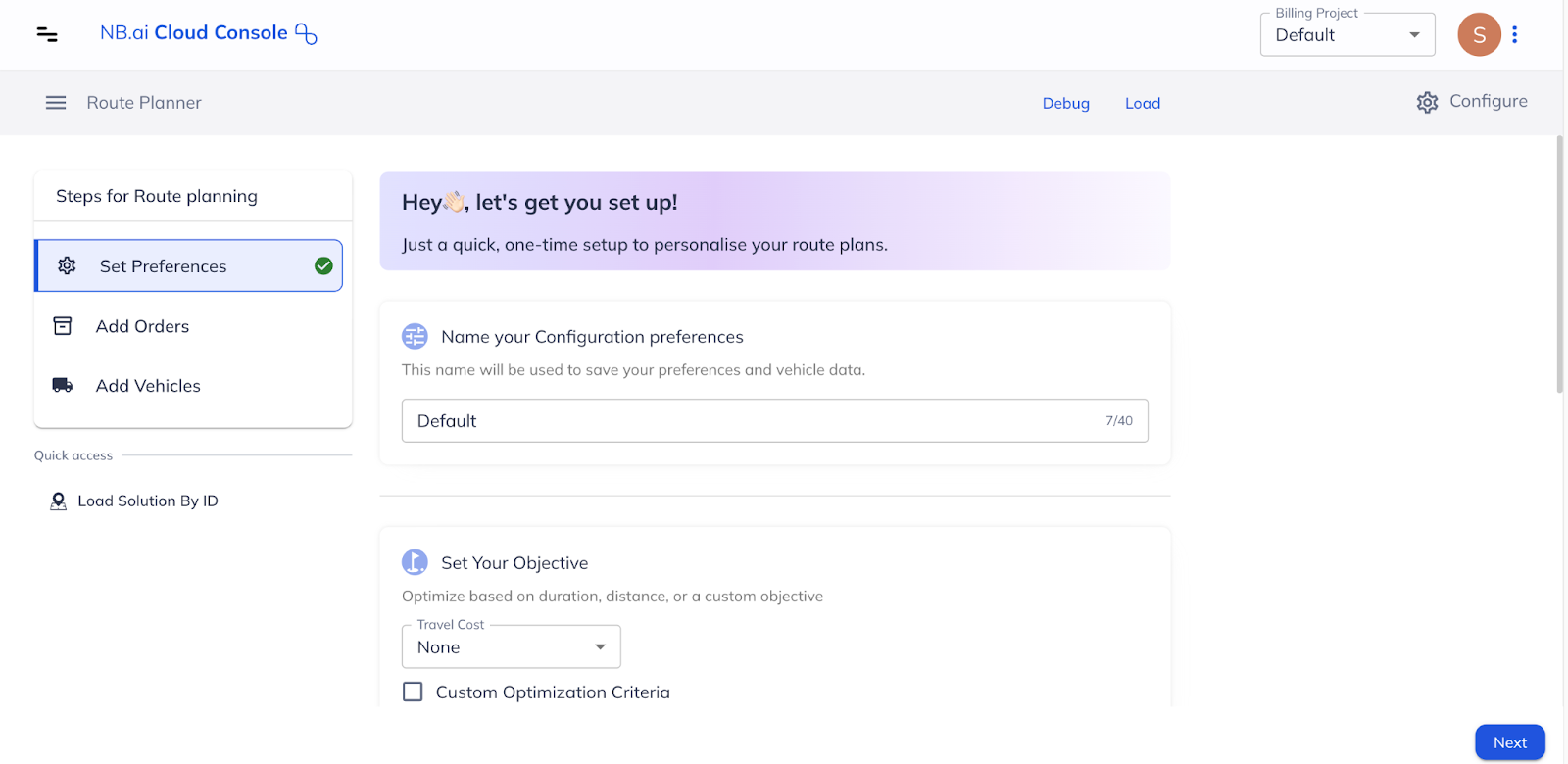
Route Planner allows users to save optimized solutions for future reference. To help categorize and organize these solutions, users can create folders and save different solutions within them, sorting them by criteria such as area, function, date, time, or any other preferred category.
Following is an interactive demo with a sample workflow for saving a solution:
Retrieving an Optimized Solution
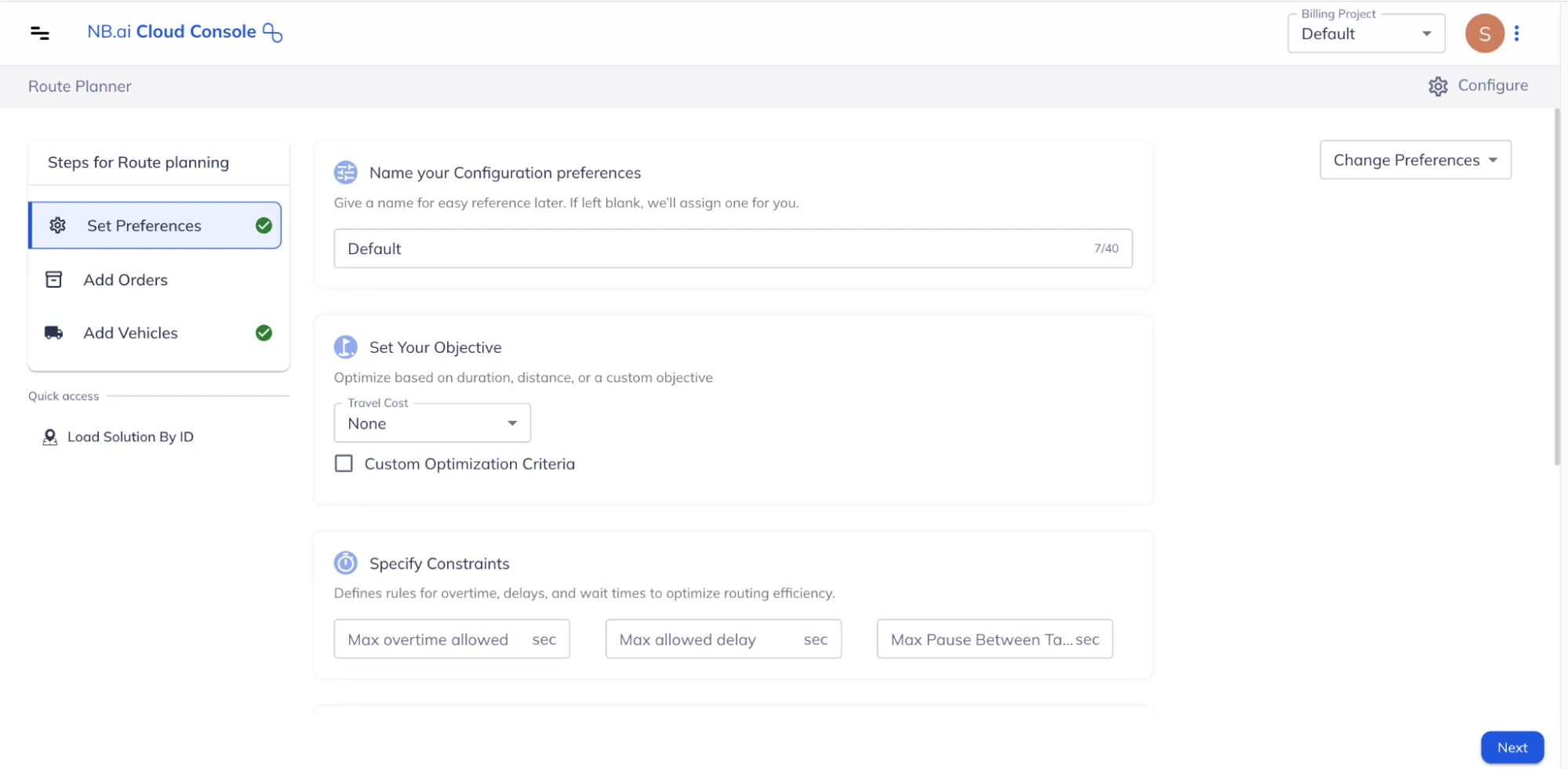
Users can also retrieve a previously generated solution using the “Load Solution by ID” option in Route Planner.
Here is a quick demonstration of how to retrieve an already existing solution:
Dispatching an Optimized Solution
In the demo, we talk about multiple options for dispatching and sharing a solution with your stakeholders. Let’s cover them one by one below:
-
Dispatch to Driver App:
This feature allows you to send a specific route directly to a driver's app. The NextBillion.ai Driver app is available for download on the App Store and PlayStore. Before dispatching routes, ensure your drivers are registered in the NextBillion.ai Cloud Console under Fleet Hub > Drivers.
-
Dispatch to Connection
Optimized solutions can be sent to existing third-party fleet management or TMS platforms. To enable dispatching an optimized route to a third party, you must first integrate them with the NextBillion.ai Cloud Console via Fleet Hub > Integrations.
-
Download CSV The Route Planner offers a downloadable CSV file containing optimized route information. This ".zip" file includes:
- A CSV summarizing the overall optimization solution.
- Separate CSV files for each individual route.
- A summary file providing high-level details for all routes. This functionality allows for further analysis and integration with other workflows.
-
Share via URL
Users can share an optimized solution with anyone using a public URL. This URL provides read-only access to the solution within Route Planner.