Getting Started
This section provides an overview of the steps required to install and configure the Navigation SDK, enabling developers to add advanced turn-by-turn navigation capabilities to their iOS applications. Whether you are building a ride-sharing app, a delivery app, or any other app that requires navigation functionality, this guide will help you get up and running quickly. By the end of this guide, you will have a basic navigation app that you can build upon to add your own custom features.
Prerequisites
Before using the iOS Navigation SDK, ensure that your development environment meets the following requirements:
-
Xcode 13.2.1
-
Swift 5.5.2
-
Minimum deployment target: iOS 12.0
-
Access Key: if you don’t have your Access Key yet, don’t hesitate to contact us
Dependency manager (choose one):
- Swift Package Manager (SPM) (supported)
- CocoaPods (supported)
- Carthage v0.40+ (supported)
Please note that using an outdated version of any of the above tools may result in compatibility issues and may not be supported by the Navigation SDK.
To integrate offline navigation capabilities into existing iOS apps, check out iOS Offline Navigation guide.
Step 1 - Configure your public access token
Add your public token to the app so the SDK can authenticate.
open your project's Info.plist and add:
- Key: NBMapAccessKey
- Value: your public access token
Alternative code-based configuration (optional):
Set token in code:
When to use this: Dynamic token injection after login, multi-tenant apps, or environment switching.
Priority and fallback: When both are configured, NGLAccountManager.accessToken is used first; NBMapAccessKey in Info.plist is used as a fallback.
Important timing: Configure the token in AppDelegate within func application(_: UIApplication, didFinishLaunchingWithOptions _: [UIApplication.LaunchOptionsKey: Any]?) before any map view is used.
Example (AppDelegate):
Step 2 - Add location permissions
Users expect navigation to continue tracking location and delivering audible guidance even when the device is locked or another app is in the foreground. To support that, add the location permission descriptions to your app’s Info settings (or Info.plist).
Required keys:
- NSLocationWhenInUseUsageDescription
- NSLocationAlwaysUsageDescription
Recommended (commonly used on modern iOS versions):
- NSLocationAlwaysAndWhenInUseUsageDescription
Example Info.plist entries:
Step 3 - Install the SDK
Choose one installation method below.
Option A — Swift Package Manager (SPM) (Recommended)
SPM is Apple’s native dependency manager and integrates directly into Xcode. The Navigation SDK is available through our SPM distribution repository.
Add via Xcode:
- Open your project in Xcode
- Go to File → Add Packages… (or File → Swift Packages → Add Package Dependency…)
- Enter the package repository URL:
- Choose a version rule (recommended: Up to Next Major Version)
- Click Add Package
- Ensure Add to Target includes your application target, then finish by clicking Add Package
After installing, you can import the SDK modules in code (see Quickstart below).
Option B — CocoaPods
To add the Navigation SDK dependency with CocoaPods:
-
Create a Podfile
-
Install and open the workspace:
Open the generated .xcworkspace
Option C — Carthage
Carthage integrates third-party libraries by building frameworks locally. The Navigation SDK Carthage setup includes required dependencies.
-
Install Carthage (if you don’t have it yet)
Carthage is a dependency manager for iOS/macOS projects. If it is not installed on your machine, follow the official installation instructions here:
For example, using Homebrew:
-
Create a Cartfile and add the SDK dependencies:
-
Build:
-
Link frameworks (Xcode → Build Phases → Link Binary With Libraries):
- Turf
- NbmapNavigation
- NbmapCoreNavigation
- Nbmap
-
Embed frameworks (Xcode → General → Frameworks, Libraries, and Embedded Content): Set each framework to Embed & Sign:
Step 4 - Quickstart: fetch a route and start navigation
This example starts navigation with default settings by requesting a route and presenting NavigationViewController.
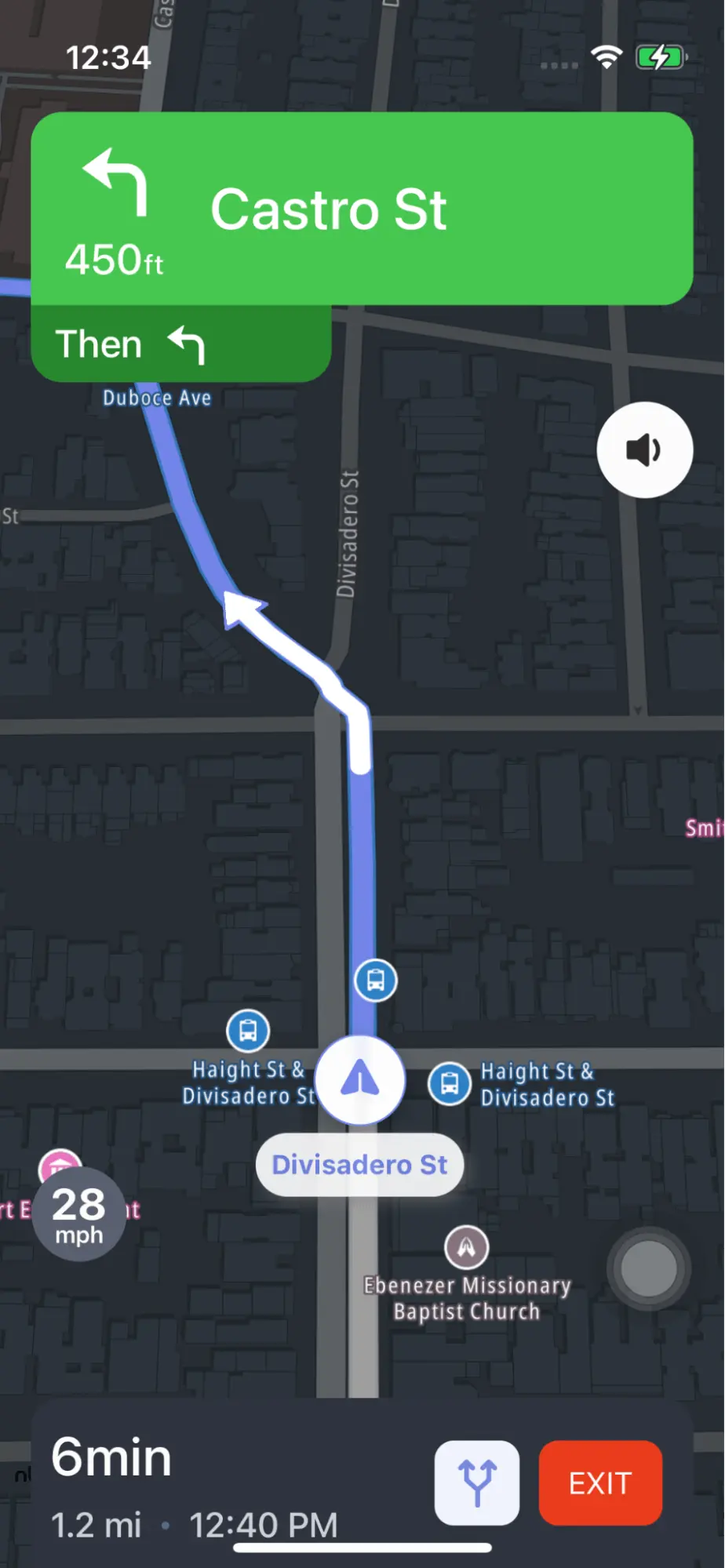
The above code is an example of how to add basic navigation functionality to an iOS application using the iOS Navigation SDK. It imports necessary frameworks and creates a BasicNavigationViewController that fetches a route between two locations using the Directions API from NbmapCoreNavigation, initializes the navigation service with the fetched route, creates a NavigationViewController, sets some navigation options, and presents it. This code can be used as a starting point to build a navigation-enabled iOS app.