Navigation Style and Theme

This section of the Android Navigation SDK guide discusses the process of customizing the Style and Theme to suit the unique branding and visual identity of the application. It covers a range of topics, such as attributes, Navigation View anatomy, attribute-to-UI mapping, and customization of styles, colors, and icons to create a unique and personalized experience for users.

Attributes

This is a list of attributes that can be used to customize the appearance of a navigation view in an application that utilizes the NextBillion.ai Navigation SDK. Each attribute has a unique number, name, and type. The attributes are organized into six groups:

  • Navigation View: The Navigation View attributes allow developers to customize the primary and secondary colors, text color and accent color.

  • Instruction List: Instruction List attributes allow developers to customize the background color, primary and secondary text color and primary and secondary maneuver color.

  • Banner: Banner attributes allow developers to customize the background color, secondary background color, primary and secondary text color, primary and secondary maneuver color.

  • Sound button: Sound button attributes allow developers to customize the color and background color of the sound button.

  • Speedometer: Speedometer attributes allow developers to customize the background color, text color and unit text color of the speedometer.

  • Others: Other attributes allow developers to customize the appearance of the destination marker, route overview, recenter background, recenter info color, user location style, route style, and map style.

To learn more about attributes in Android, please refer to the Android official docs: Styles and Themes and Create a view class.

  • Navigation View: The Navigation View attributes allow developers to customize the primary and secondary colors, text color and accent color.
No.Attribute NameType
1navViewPrimarycolor
2navViewSecondarycolor
3navViewAccentcolor
4navViewPrimaryTextcolor
5navViewSecondaryTextcolor
  • Instruction List: Instruction List attributes allow developers to customize the background color, primary and secondary text color and primary and secondary maneuver color.
No.Attribute NameType
6navViewListBackgroundcolor
7navViewListPrimarycolor
8navViewListSecondarycolor
9navViewListManeuverPrimarycolor
10navViewListManeuverSecondarycolor
  • Banner: Banner attributes allow developers to customize the background color, secondary background color, primary and secondary text color, primary and secondary maneuver color.
No.Attribute NameType
11navViewBannerBackgroundcolor
12navViewBannerSecondaryBackgroundcolor
13navViewBannerPrimaryTextcolor
15navViewBannerManeuverPrimarycolor
16navViewBannerManeuverSecondarycolor
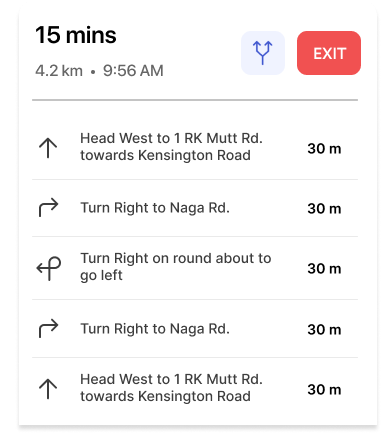
  • Sound button: Sound button attributes allow developers to customize the color and background color of the sound button.
No.Attribute NameType
17navViewSoundColorcolor
18navViewSoundBackgroundColorcolor
  • Speedometer: Speedometer attributes allow developers to customize the background color, text color and unit text color of the speedometer.
No.Attribute NameType
19navigationCurrentSpeedBackgroundColorcolor
20navigationCurrentSpeedTextColorcolor
21navigationCurrentSpeedUnitTextColorcolor
  • Others: Other attributes allow developers to customize the appearance of the destination marker, route overview, recenter background, recenter info color, user location style, route style, and map style.
No.Attribute NameType
22navDestinationMarkerdrawable
23navViewRouteOverviewDrawabledrawable
24navViewRouteOverviewBackgroundcolor
25navViewRouteOverviewDrawabledrawable
26navigationViewReCentreInfoColorcolor
27navViewUserLocationStylestyle
28navViewRouteStylestyle
29navViewMapStyleString

To learn more about attributes in Android, please refer to the Android official docs: Styles and Themes and Create a view class. These attributes give developers a high degree of control over the appearance of the navigation view, enabling them to create a visually pleasing and user-friendly navigation experience that is fully consistent with the branding and design of their application.

Anatomy of the Navigation View

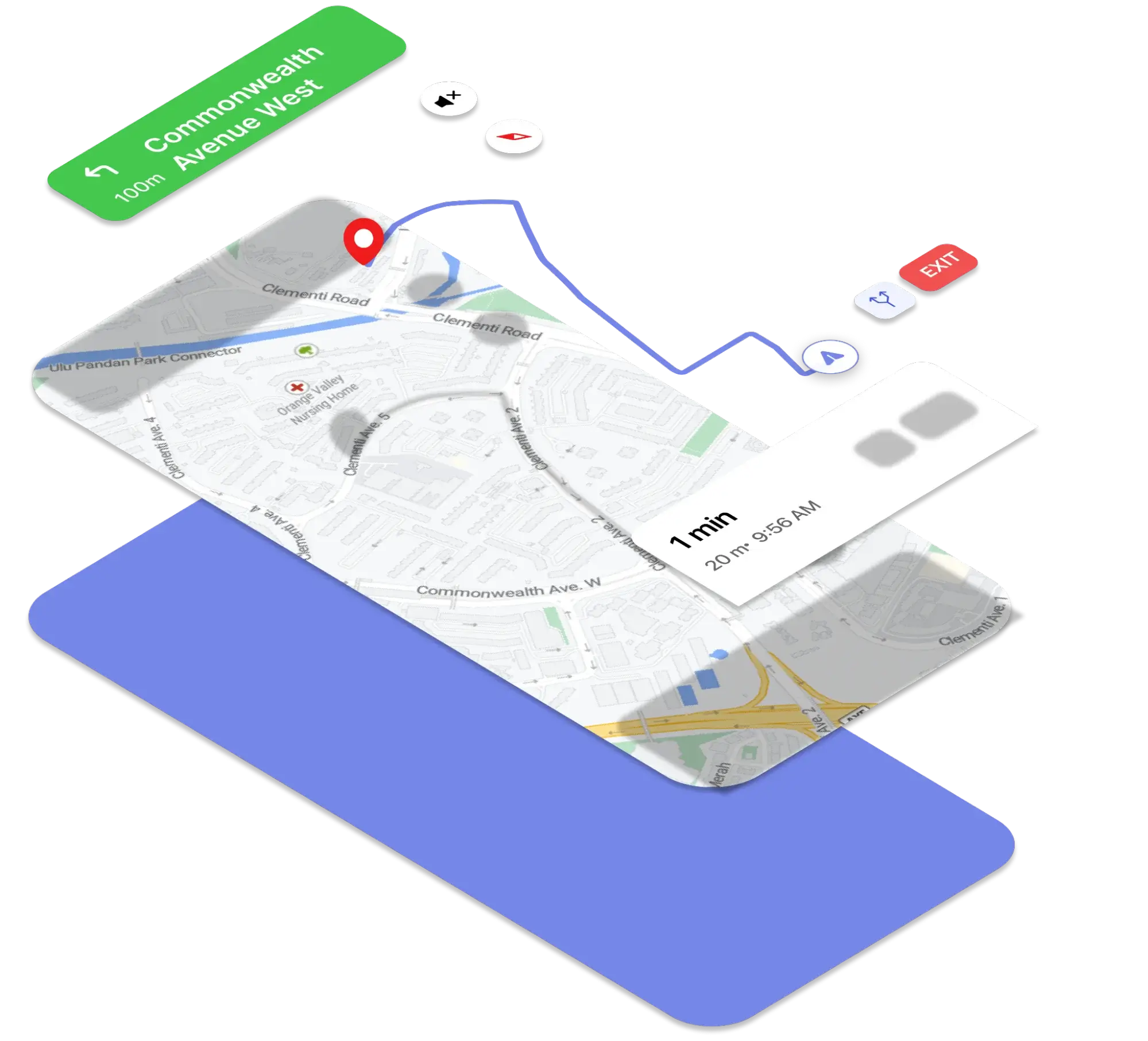
This is an anatomy of the Navigation View in an application that utilizes the NextBillion.ai Navigation SDK. The navigation view is broken down into several components, each of which can be customized using specific attributes. These attributes are organized into groups such as Banner, Bottom Summary, Recenter button, Sound button, Route line, Destination Marker, User location, Instruction list, Map Style and Speedometer. Each component has a unique number, example, and description.

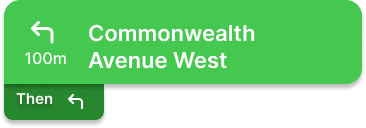
For example, the Banner component, which displays the current step and maneuver, can be customized using attributes such as navViewBannerBackground, navViewBannerPrimaryText, navViewBannerManeuverPrimary and navViewBannerSecondaryText.

The Bottom Summary component, which displays the remaining time and distance, can be customized using attributes such as navViewPrimary, navViewRouteOverviewBackground, and navViewSecondaryText. The Recenter button component can be customized using the navigationViewReCentreInfoColor attribute. The Sound button component can be customized using attributes such as navViewSoundColor, navViewSoundBackgroundColor, navViewSoundColor and navViewSoundColor. The Route line component can be customized using attributes such as navViewRouteStyle, routeColor, routeShieldColor and routeScale.

The Destination Marker, User location, Instruction list, Map Style and Speedometer components can also be customized using specific attributes. To understand what and how we can modify in the navigation view, let’s break it down into pieces:
documentation image

No.

Example

Description

Attribute

1

Banner

Background color: navViewBannerBackground

1.1

Commonwealth Avenue West

Primary step

navViewBannerPrimaryText

1.2

Manuever Icon

navViewBannerManeuverPrimary

1.3

100m

Distance text

navViewBannerSecondaryText

1.4

Then step instruction Then step text

1.4.1 Background color:
navViewBannerSecondaryBackground
1.4.2 Step text:
navViewBannerSecondaryText

1.5

Turn lanes

2

Bottom Summary BackGroud Color

navViewPrimary

2.1

Route Preview

navViewRouteOverviewBackground
navViewRouteOverviewDrawable

2.2

Exit

(TBD)

2.2

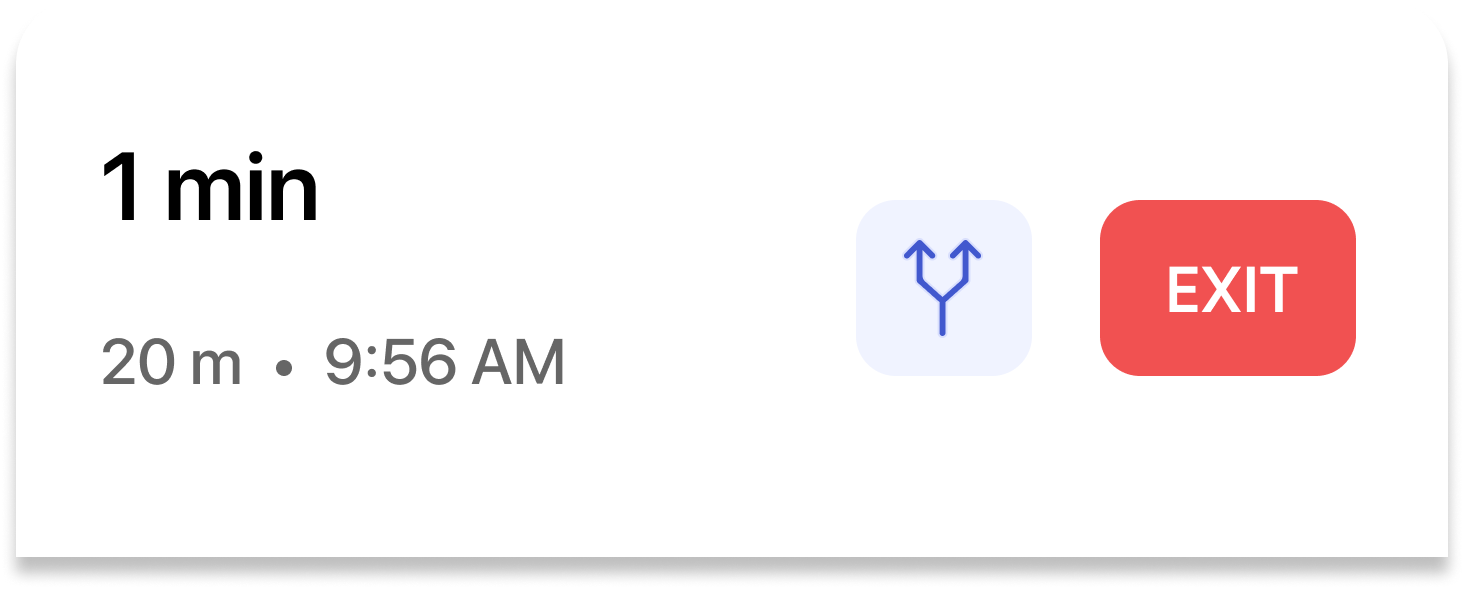
1 min

Remaining time

navViewPrimaryText

2.2

20 m . 9:56 AM

Remaining distance & Arrival time

navViewSecondaryText

3

Recenter button Recenter text

navigationViewReCentreInfoColor

4

Sound button

navViewSoundColor navViewSoundBackgroundColor

4.1

Sound button text

navViewSoundColor

4.2

Sound button text

navViewSoundColor

5

Route line

navViewRouteStyle 5.0.1 route color:           routeColor 5.0.2 route shield color:           routeShieldColor 5.0.3 route scale:           routeScale

5.1

Maneuver arrow

 ​​maneuverArrowColor maneuverArrowBorderColor

6

Destination Marker

navDestinationMarker

7

User location

navViewUserLocationStyle -> nbmap_LocationComponent -> nbmap_gpsDrawable

8

Instruction list

navViewListBackground

8.1

Instruction list item text

navViewListPrimary navViewListSecondary

8.2

Instruction list item maneuver

navViewListManeuverPrimary navViewListManeuverSecondary

9

Map Style

navViewMapStyle

10

Speedometer

navigationCurrentSpeedBackgroundColor

10.1

63

Driving speed

navigationCurrentSpeedTextColor

10.2

km/h

Speed unit

navigationCurrentSpeedUnitTextColor

These attributes give developers a high degree of control over the appearance of the navigation view, enabling them to create a visually pleasing and user-friendly

Mapping between attributes and UI

This is a mapping between attributes and the User Interface (UI) of NavigationView. The table lists various attributes and their corresponding UI components that they affect. For example, the attribute navViewPrimary is used to customize the background color of the Bottom Summary, Sound button and the attribute navViewSecondary is used to customize the Sound button text.

Use this mapping table to quickly identify which theme attribute controls each UI area.

No.

Attributes

UI

1

navViewPrimary

Bottom summary background
Feedback button
Sound button
Wayname text background
Feedback bottom sheet background

2

navViewSecondary

Sound btn text

3

navViewAccent

Re-center Icon
Re-center text
WayName text

4

navViewPrimaryText

Time remaining in bottom summary

5

navViewSecondaryText

Distance remaining in bottom summary
Arrival time in bottom summary

6

navViewListBackground

Instruction list
then-instruction
turn lane view
sub-banner background

7

navViewListPrimary

Primary step text in bottom list
Maneuver icon in bottom list

8

navViewListSecondary

Distance text in instruction list
Secondary step text in instruction list

9

navViewBannerBackground

Banner instruction
Rerouting layout

10

navViewBannerSecondaryBackground

Then step
Turn lanes

11

navViewBannerPrimaryText

Primary step(Banner and List)
Rerouting text
Alert text

12

navViewBannerSecondaryText

Step distance
Secondary step
Then step text

13

navViewBannerManeuverPrimary

Maneuver Icon in banner
Turn lane icon
Then step turn lane icon

14

navViewBannerManeuverSecondary

Secondary part of a Maneuver Icon
Secondary part of a Turn Lane Icon(straight in Right only, right in Straight only)
Secondary part of a then step turn lane icon

15

navViewSoundColor

Sound button color

16

navViewSoundBackgroundColor

Sound button background color

17

navDestinationMarker

18

navViewRouteOverviewDrawable

19

navViewRouteOverviewBackground

Overview background color

20

navigationViewReCentreBackgroundDrawable

21

navigationViewReCentreInfoColor

Re-center Icon
Re-center text

22

navViewUserLocationStyle

Style of user location

23

navViewRouteStyle

See next section

24

navViewMapStyle

Style of base maps

25

navigationCurrentSpeedBackgroundColor

Speedometer background color

26

navigationCurrentSpeedTextColor

The text color of the current driving speed

27

navigationCurrentSpeedUnitTextColor

Speed unit text color of the current driving speed

28

navViewListManeuverPrimary

Instruction list maneuver primary

29

navViewListManeuverSecondary

Instruction list maneuver secondary

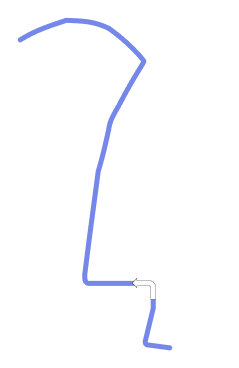
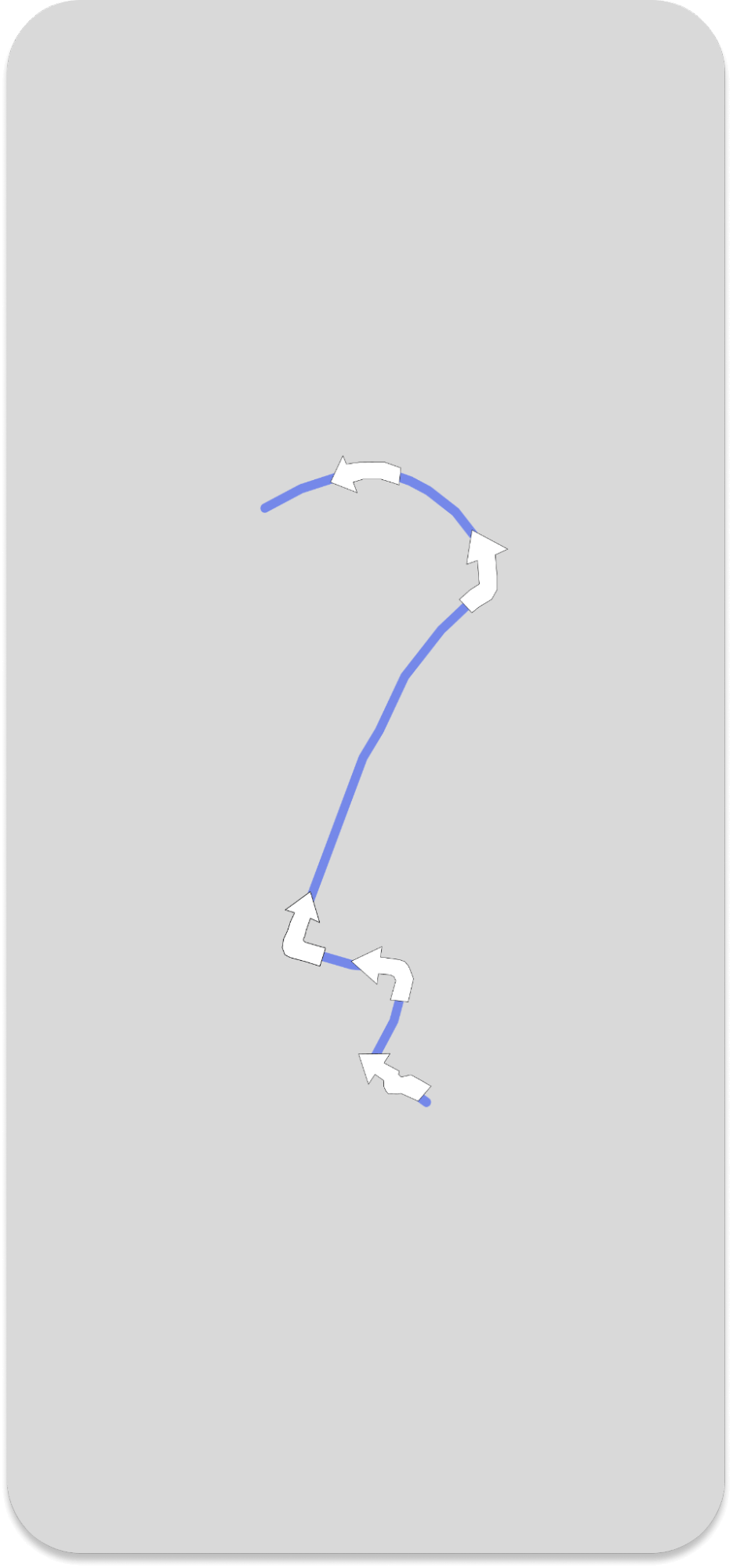
Use NavigationMapRoute style to configure route colors, congestion colors, arrow colors, scales, and line cap behavior.

1
<declare-styleable name="NavigationMapRoute">
2
<!-- Primary route colors -->
3
<attr name="routeColor" format="color" />
4
<attr name="routeModerateCongestionColor" format="color" />
5
<attr name="routeSevereCongestionColor" format="color" />
6
<attr name="routeShieldColor" format="color" />
7
8
9
<!-- Alternative route colors -->
10
<attr name="alternativeRouteColor" format="color" />
11
<attr name="alternativeRouteModerateCongestionColor" format="color" />
12
<attr name="alternativeRouteSevereCongestionColor" format="color" />
13
<attr name="alternativeRouteShieldColor" format="color" />
14
15
16
<attr name="routeFloatDurationBackgroundPrimary" format="color" />
17
<attr name="routeFloatDurationTextPrimary" format="color" />
18
<attr name="routeFloatDurationBackgroundAlternative" format="color" />
19
<attr name="routeFloatDurationTextAlternative" format="color" />
20
21
22
<attr name="routeWayNameTextColor" format="color"/>
23
<attr name="routeWayNameBackGroundColor" format="color"/>
24
25
26
<!-- Dash line colors -->
27
<attr name="dashLineColor" format="color" />
28
29
30
<!-- Origin/Destination waypoint drawables -->
31
<attr name="originWaypointIcon" format="reference" />
32
<attr name="destinationWaypointIcon" format="reference" />
33
34
35
<!-- Route Scales -->
36
<attr name="routeScale" format="float" />
37
<attr name="alternativeRouteScale" format="float" />
38
<attr name="dashLineScale" format="float" />
39
40
41
<attr name="maneuverArrowColor" format="color" />
42
<attr name="maneuverArrowBorderColor" format="color" />
43
44
45
<!-- Rounded route line cap -->
46
<attr name="roundedLineCap" format="boolean" />
47
48
49
<attr name="offRouteDotColor" format="color" />
50
<attr name="navigationDissolvedRouteColor" format="color" />
51
<attr name="navigationDissolvedAnimatedRouteColor" format="color" />
52
</declare-styleable>

we can categorize the attributes into these groups:

  • Primary route line

  • alternative route line

  • dashed route line

  • dissolved route line

  • wayname chip

  • waypoint drawables

  • Route scales

  • maneuver arrow

  • line cap

  • off route dot

A minimum example as below:

1
<style name="xxx">
2
...
3
<attr name="routeColor" format="color"/>
4
<attr name="routeModerateCongestionColor" format="color"/>
5
<attr name="routeSevereCongestionColor" format="color"/>
6
<attr name="routeShieldColor" format="color"/>
7
<attr name="routeScale" format="float"/>
8
<attr name="alternativeRouteScale" format="float"/>
9
...
10
</style>

Use nbmap_LocationComponent style to customize location puck, accuracy ring, tint, and related location visuals.

1
<declare-styleable name="nbmap_LocationComponent">
2
<attr name="nbmap_foregroundDrawable" format="reference" />
3
<attr name="nbmap_foregroundTintColor" format="color" />
4
<attr name="nbmap_backgroundDrawable" format="reference" />
5
<attr name="nbmap_backgroundTintColor" format="color" />
6
<attr name="nbmap_bearingDrawable" format="reference" />
7
<attr name="nbmap_bearingTintColor" format="color" />
8
<attr name="nbmap_gpsDrawable" format="reference" />
9
10
11
<attr name="nbmap_foregroundDrawableStale" format="reference" />
12
<attr name="nbmap_foregroundStaleTintColor" format="color" />
13
<attr name="nbmap_backgroundDrawableStale" format="reference" />
14
<attr name="nbmap_backgroundStaleTintColor" format="color" />
15
16
17
<attr name="nbmap_accuracyAlpha" format="float" />
18
<attr name="nbmap_accuracyColor" format="color" />
19
20
21
<attr name="nbmap_elevation" format="dimension" />
22
23
24
<!-- Stale state -->
25
<attr name="nbmap_enableStaleState" format="boolean" />
26
<attr name="nbmap_staleStateTimeout" format="integer" min="0" />
27
28
29
<!-- Location icon padding -->
30
<attr name="nbmap_iconPaddingLeft" format="integer" />
31
<attr name="nbmap_iconPaddingTop" format="integer" />
32
<attr name="nbmap_iconPaddingRight" format="integer" />
33
<attr name="nbmap_iconPaddingBottom" format="integer" />
34
35
36
<!-- Map layer configuration -->
37
<attr name="nbmap_layer_above" format="string" />
38
<attr name="nbmap_layer_below" format="string" />
39
40
41
<!-- Icon scale based on map zoom levels -->
42
<attr name="nbmap_maxZoomIconScale" format="float" />
43
<attr name="nbmap_minZoomIconScale" format="float" />
44
45
46
<!-- Camera tracking settings -->
47
<attr name="nbmap_trackingGesturesManagement" format="boolean" />
48
<attr name="nbmap_trackingInitialMoveThreshold" format="dimension" />
49
<attr name="nbmap_trackingMultiFingerMoveThreshold" format="dimension" />
50
51
52
<!-- Animation duration multiplier -->
53
<attr name="nbmap_trackingAnimationDurationMultiplier" format="float" />
54
55
56
<!-- Compass animation -->
57
<attr name="nbmap_compassAnimationEnabled" format="boolean" />
58
59
60
<!-- Accuracy animation-->
61
<attr name="nbmap_accuracyAnimationEnabled" format="boolean" />
62
63
64
<!-- Pulsing circle -->
65
<attr name="nbmap_pulsingLocationCircleEnabled" format="boolean" />
66
<attr name="nbmap_pulsingLocationCircleFadeEnabled" format="boolean" />
67
<attr name="nbmap_pulsingLocationCircleColor" format="color" />
68
<attr name="nbmap_pulsingLocationCircleDuration" format="float" />
69
<attr name="nbmap_pulsingLocationCircleRadius" format="float" />
70
<attr name="nbmap_pulsingLocationCircleAlpha" format="float" />
71
<attr name="nbmap_pulsingLocationCircleInterpolator" format="string" />
72
73
74
</declare-styleable>

the default style of location component

1
<style name="nbmap_LocationComponent">
2
<item name="nbmap_foregroundDrawable">@drawable/nbmap_user_icon</item>
3
<item name="nbmap_backgroundDrawable">@drawable/nbmap_user_stroke_icon</item>
4
<item name="nbmap_bearingDrawable">@drawable/nbmap_user_bearing_icon</item>
5
<item name="nbmap_gpsDrawable">@drawable/nbmap_user_puck_icon</item>
6
7
8
<item name="nbmap_foregroundDrawableStale">@drawable/nbmap_user_icon_stale</item>
9
<item name="nbmap_backgroundDrawableStale">@drawable/nbmap_user_stroke_icon</item>
10
11
12
<item name="nbmap_accuracyAlpha">0.15</item>
13
<item name="nbmap_accuracyColor">@color/nbmap_location_layer_blue</item>
14
15
16
<item name="nbmap_elevation">12dp</item>
17
18
19
<item name="nbmap_enableStaleState">true</item>
20
<item name="nbmap_staleStateTimeout">30000</item>
21
22
23
<!-- Location icon padding -->
24
<item name="nbmap_iconPaddingLeft">0</item>
25
<item name="nbmap_iconPaddingTop">0</item>
26
<item name="nbmap_iconPaddingRight">0</item>
27
<item name="nbmap_iconPaddingBottom">0</item>
28
29
30
<!-- Location icon scale based on map zoom levels -->
31
<item name="nbmap_maxZoomIconScale">1</item>
32
<item name="nbmap_minZoomIconScale">0.6</item>
33
34
35
<!-- Camera tracking settings -->
36
<item name="nbmap_trackingGesturesManagement">false</item>
37
<item name="nbmap_trackingInitialMoveThreshold">@dimen/nbmap_locationComponentTrackingInitialMoveThreshold</item>
38
<item name="nbmap_trackingMultiFingerMoveThreshold">@dimen/nbmap_locationComponentTrackingMultiFingerMoveThreshold</item>
39
40
41
<!-- Location pulsing circle -->
42
<item name="nbmap_pulsingLocationCircleEnabled">false</item>
43
<item name="nbmap_pulsingLocationCircleFadeEnabled">true</item>
44
<item name="nbmap_pulsingLocationCircleColor">@color/nbmap_location_layer_blue</item>
45
<item name="nbmap_pulsingLocationCircleDuration">2300</item>
46
<item name="nbmap_pulsingLocationCircleRadius">35</item>
47
<item name="nbmap_pulsingLocationCircleAlpha">0.4</item>
48
<item name="nbmap_pulsingLocationCircleInterpolator">decelerate</item>
49
50
</style>

navViewMapStyle is an attribute used to configure the base map's style in the Navigation SDK. It is a string value that corresponds to a Mapbox Style, which can be customized as per the user's needs. This attribute is typically included in a style resource file and can be set to any valid Mapbox style URL or local style file. A string value to configure the base map's style(Mapbox's Style https://docs.mapbox.com/help/glossary/style/)

In the example provided, the attribute is being set within a custom style called "CustomisedNavigationViewLight" which extends the "NavigationViewLight" style.

1
<style name="CustomisedNavigationViewLight" parent="NavigationViewLight">
2
...
3
<item name="navViewMapStyle">@string/xxx</item>
4
...
5
</style>

An example of a Navigation Theme

Example Style

This is an example of a custom theme for the NavigationView in the Navigation SDK. It extends the default NavigationView theme and overrides only the colors/drawables required by your brand.

1
<style name="navViewLight" parent="Theme.AppCompat.Light.NoActionBar">
2
<item name="navViewPrimary"> @color/placeholder</item>
3
<item name="navViewSecondary"> @color/placeholder</item>
4
<item name="navViewAccent"> @color/placeholder</item>
5
<item name="navViewPrimaryText"> @color/placeholder</item>
6
<item name="navViewSecondaryText"> @color/placeholder</item>
7
<item name="navViewDivider"> @color/placeholder</item>
8
<item name="navViewBannerBackground"> @color/placeholder</item>
9
<item name="navViewBannerPrimaryText"> @color/placeholder</item>
10
<item name="navViewBannerSecondaryText"> @color/placeholder</item>
11
<item name="navViewBannerManeuverPrimary"> @color/placeholder</item>
12
<item name="navViewBannerManeuverSecondary"> @color/placeholder</item>
13
<item name="navViewProgress"> @color/placeholder</item>
14
<item name="navViewProgressBackground"> @color/placeholder</item>
15
<item name="navViewRouteStyle"> @style/NavigationMapRoute</item>
16
<item name="navViewLocationLayerStyle"> @style/NavigationLocationLayerStyle</item>
17
<item name="navViewDestinationMarker"> @drawable/placeholder</item>
18
<item name="navViewRouteOverviewDrawable"> @drawable/placeholder</item>
19
<item name="navViewMapStyle"> @string/placeholder</item>
20
<item name="navViewSoundColor"> @color/placeholder</item>
21
<item name="navViewSoundBackgroundColor"> @color/placeholder</item>
22
<item name="navViewBannerSecondaryBackground"> @color/placeholder</item>
23
<item name="navViewListBackground"> @color/placeholder</item>
24
<item name="navViewListPrimary"> @color/placeholder</item>
25
<item name="navViewListSecondary"> @color/placeholder</item>
26
<item name="navViewListManeuverPrimary"> @color/placeholder</item>
27
<item name="navViewListManeuverSecondary"> @color/placeholder</item>
28
<item name="navigationCurrentSpeedBackgroundColor"> @color/placeholder</item>
29
<item name="navigationCurrentSpeedTextColor"> @color/placeholder</item>
30
<item name="navigationCurrentSpeedUnitTextColor"> @color/placeholder</item>
31
32
</style>

Route Style

This is an example for customizing route style components like configuring primary/alternative route color, shield color, arrow style, scale, and line cap.

1
<style name="NavigationMapRoute">
2
<item name="routeColor"> @color/placeholder</item>
3
<item name="routeModerateCongestionColor"> @color/placeholder</item>
4
<item name="routeSevereCongestionColor"> @color/placeholder</item>
5
<item name="routeShieldColor"> @color/placeholder</item>
6
<item name="routeScale"> 1.0</item>
7
<item name="maneuverArrowColor"> @color/placeholder</item>
8
<item name="maneuverArrowBorderColor"> @color/placeholder</item>
9
<item name="roundedLineCap"> true</item>
10
</style>

Location Component Style

This is a style resource for the location component in the Maps SDK. It inherits from the base location component style and overrides specific attributes to customize the location layer. The example shows two attributes, nbmap_trackingAnimationDurationMultiplier and nbmap_trackingGesturesManagement. The first attribute sets the duration multiplier for location tracking animation, while the second attribute sets the gestures management for location tracking. This allows developers to fine-tune the behavior of the location layer to match the desired user experience.

1
<style name="NavigationLocationLayerStyle"parent="@style/nbmap_LocationComponent">
2
<item name="nbmap_trackingAnimationDurationMultiplier"> 1.1</item>
3
<item name="nbmap_trackingGesturesManagement"> true</item>
4
</style>

For full details of the parent location component style (@style/nbmap_LocationComponent), refer to the Maps style section.

Apply styles to the navigation view

To apply these attributes to the navigation view, first, we need to declare a light style and a dark style(if needed), and then pass them to the SDK

1
<style name="Your Light Style" parent="NavigationViewLight">
2
...
3
</style>
1
<style name="Your Dark Style" parent="NavigationViewDark">
2
...
3
</style>

Please note that the parent field will be required if you are not going to override all default attributes. And then pass the styles to the second page via NavLauncherConfig. The NavLauncherConfig.Builder is used to set the route, location layer render mode, light theme, dark theme, and theme mode. The theme mode can be set to "dark", "light", or "system" (default). Finally, the NavigationLauncher.startNavigation() method is called with the activity and the configBuilder.build() as parameters to start the navigation.

1
NavLauncherConfig.Builder configBuilder = NavLauncherConfig.builder();
2
3
configBuilder.route(route);
4
configBuilder.locationLayerRenderMode(RenderMode.GPS);
5
6
configBuilder.lightThemeResId(R.style.{Your Light Style name});
7
configBuilder.darkThemeResId(R.style.{Your Dark Style name});
8
configBuilder.themeMode(The theme mode you want to use, value can be "dark","light" and "system",the default value is system);
9
10
11
NavigationLauncher.startNavigation(activity, configBuilder.build());

Scenario breakdown

Use a different destination icon

destination-icon

A reference of Drawable value. This style definition is used to set the destination marker icon in the navigation view. The attribute "navViewDestinationMarker" accepts a reference to a Drawable. To change the destination marker, one can simply add an item in the style definition with the name "navViewDestinationMarker" and set it to the desired drawable resource.

1
<attr name="navViewDestinationMarker" format="reference"/>

To use other markers, we can simply add the line below to our style/theme. In the example provided, the destination marker is being set to a drawable resource named "dest_marker". This change will be reflected in the navigation view when the style is applied to the navigation view.

1
<style name="your style">
2
...
3
<item name="navViewDestinationMarker">@drawable/dest_marker</item>
4
...
5
</style>
6

Customize the route style

documentation image

Colors & Size/Scale

Here is an example for customizing route color palette and route scale values in a single style block.

1
2
<attr name="routeColor" format="color"/>
3
<attr name="routeModerateCongestionColor" format="color"/>
4
<attr name="routeSevereCongestionColor" format="color"/>
5
<attr name="routeShieldColor" format="color"/>
6
<attr name="routeScale" format="float"/>
7
<attr name="alternativeRouteScale" format="float"/>
8
9
10
<style name="your route style">
11
...
12
<item name="routeColor">@color/xxx</item>
13
<item name="routeModerateCongestionColor">@color/xxx</item>
14
<item name="routeSevereCongestionColor">@color/xxx</item>
15
<item name="routeShieldColor">@color/xxx</item>
16
<item name="routeScale">1.0</item>
17
...
18
</style>
19
1
<style name="your style">
2
...
3
<item name="navViewRouteStyle">your route style</item>
4
...
5
</style>

Upcoming Maneuver arrow

This is an example for customizing the upcoming maneuver arrow’s color/border via route style attributes.

1
<attr name="upcomingManeuverArrowColor" format="color"/>
2
<attr name="upcomingManeuverArrowBorderColor" format="color"/>

Example

1
<style name="your route style">
2
...
3
<item name="upcomingManeuverArrowColor"> @color/xxx</item>
4
<item name="upcomingManeuverArrowBorderColor"> @color/xxx</item>
5
...
6
</style>

the default values:

No.Attribute NameColor Code / Value
1routeColor

#7588E9

2routeShieldColor

#7588E9

3routeModerateCongestionColor

#F3A64F

4routeSevereCongestionColor

#E93340

5maneuverArrowColor

#FFFFFF

6maneuverArrowBorderColor

#2D3F53

7routeScale0.8
8roundedLineCaptrue

Customize the colors of banner instructions
customize-banner.png

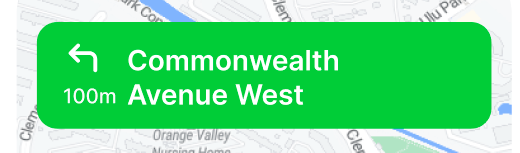
This is an example of how to customize banner instruction colors (background, primary/secondary text, maneuver colors).

The navViewBannerBackground attribute is used to specify the background color of the banner. navViewBannerPrimaryText is used to set the color of the primary text, which is typically the name of the street or road the user is currently on. navViewBannerSecondaryText is used to set the color of the secondary text, which is typically the distance until the next maneuver. navViewBannerManeuverPrimary is used to set the color of the maneuver icon, which is typically an arrow pointing in the direction of the next maneuver.
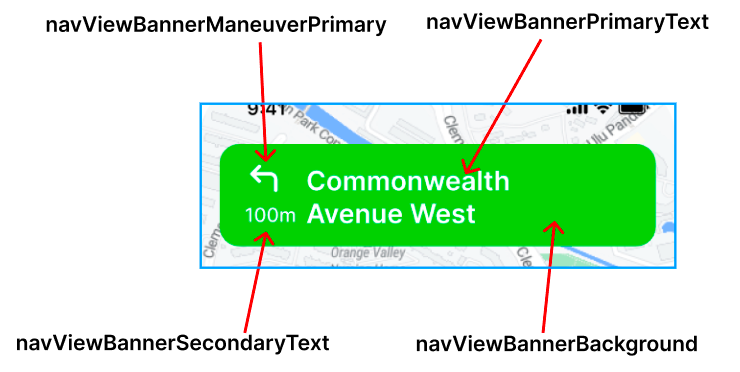
No.Attribute NameImpacted Property
1navViewBannerBackgroundcolor
2navViewBannerPrimaryTextcolor
3navViewBannerSecondaryTextcolor
4navViewBannerManeuverPrimarycolor
customize-banner-detail.png

For example, you can set the background color of the banner to white, the primary text color to black, the secondary text color to gray and the maneuver icon color to blue.

No.PropertyAttribute NameReference
1Primary Step TextnavViewBannerPrimaryTextCommonwealth Avenue West
2Maneuver IconnavViewBannerManeuverPrimaryTurn left icon
3Distance TextnavViewBannerSecondaryText100m
4Background ColornavViewBannerBackgroundWhite

Customize the colors of the bottom summary and instructions list

This example is customizing the colors of the bottom summary and instructions list in the Navigation View.
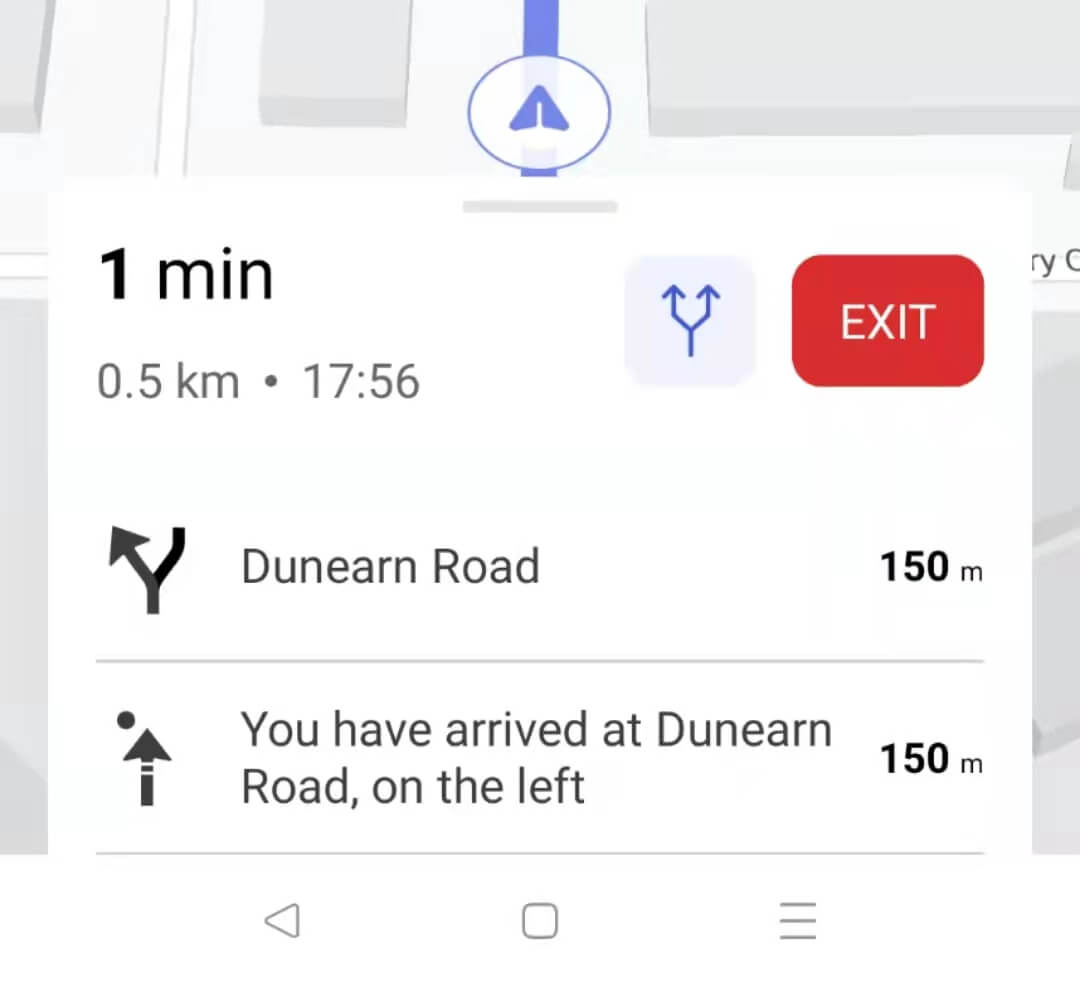
customize-navigation
No.PropertyAttribute NameReference
1Time Remaining TextnavViewPrimaryText1 min
2Distance Remaining TextnavViewSecondaryText0.5km
3Arrival Time TextnavViewSecondaryText17:56
4Instruction List Background ColornavViewBannerBackgroundWhite
5Step Primary TextnavViewListPrimaryDunearn Road
6Step Distance TextnavViewListSecondary150m
7Instruction List Maneuver PrimarynavViewListManeuverPrimary
8Instruction List Maneuver SecondarynavViewListManeuverSecondary

Change the base map’s style

To configure the base maps’ style is straightforward, simply add the styleable attribute below to our style.

The attribute "navViewMapStyle" is used to customize the style of the base map displayed in the navigation view. The format is a string, which refers to the Mapbox's Style URL (https://docs.mapbox.com/help/glossary/style/).

1
<attr name="navViewMapStyle" format="string"/>

In the example, your navViewRouteStyle is being set to a string reference of your map style. This allows developers to easily switch between different map styles by changing the value of this attribute in their app's styles.

1
<style name="your style">
2
...
3
<item name="navViewMapStyle">a reference of your style(string value)</item>
4
...
5
</style>