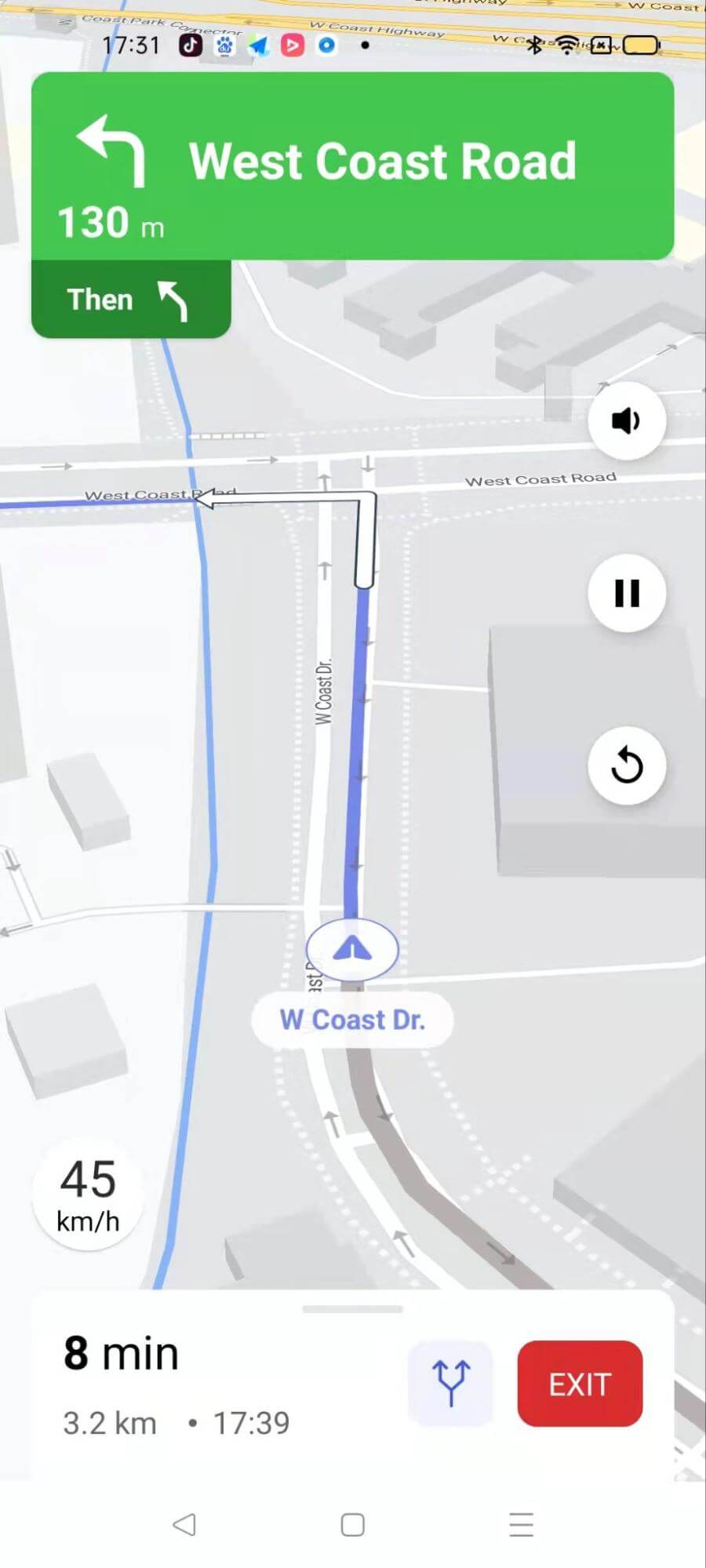
This section is designed to help developers quickly and easily get up and running with the Navigation SDK. It covers the prerequisites and requirements for using the SDK, as well as detailed installation instructions and information on Maven dependencies. By following the steps outlined in this section, developers can quickly set up the Navigation SDK and start building engaging navigation experiences for their users. Additionally, it includes a Quickstart guide to creating a simple navigation app using the SDK, allowing developers to quickly see the Navigation SDK in action and get a feel for its capabilities.
Prerequisites and requirements for using the SDK
Our Android Navigation SDK require the following prerequisites:
Access Key: if you don’t have your Access Key yet, don’t hesitate to contact us
IDE (Android Studio): to build and develop the Android application
Use the latest stable Android Studio version recommended by Google
Navigation SDK’s Android SDK levels
minSdkVersion 23
targetSdkVersion 34
compileSdkVersion 34
Use the Google Play services location version compatible with your project and this SDK release. Refer to the latest release notes for the recommended version.
To integrate offline navigation capabilities into existing Android apps, check out Android Offline Navigation guide.
Installation instructions
The section explains how to install the SDK by adding the necessary dependencies to your project. It provides instructions on adding the maven dependencies of SDK to your app's build.gradle file.
Maven Dependencies
Add the NextBillion Android Navigation SDK dependency in your app-level build.gradle file.
It is recommended to use a single version policy: set def version = "2.7.1" and keep all explanatory text aligned with that version.
Since the Gradle file has been edited. Android Studio will ask you whether to sync the files or not. Select Yes, and sync the Gradle files for successful installation of Android Navigation SDK.
Initialization
The Navigation SDK is dependent on the Maps SDK, before we start using any functionalities from both SDKs, we need to initialize the Maps SDK first.
Initializing means passing your Access Key to the singleton method of the class Nextbillion, A common way to initialize the SDK is to put the following code in an application’s onCreate() callback.
Otherwise, please make sure you have called the code below before using any SDK functionalities.
If your project does not have an Application class, call initialization before invoking any SDK APIs (route fetching, NavigationLauncher, embedded NavigationView, or map rendering).
Add Permissions
To use all functions of Navigation SDK, you need to declare the required permissions in the AndroidManifest.xml file
Request runtime permissions in your app before starting navigation. At minimum, request foreground location; request background location and notifications only when those features are used.
1
// Check if the ACCESS_FINE_LOCATION permission is granted
2
if (ContextCompat.checkSelfPermission(this.getApplicationContext(),
3
Manifest.permission.ACCESS_FINE_LOCATION)
4
== PackageManager.PERMISSION_GRANTED) {
5
mLocationPermissionGranted = true;
6
} else {
7
// Request the location permission
8
ActivityCompat.requestPermissions(this,
9
new String[]{Manifest.permission.ACCESS_FINE_LOCATION},
10
PERMISSIONS_REQUEST_ACCESS_FINE_LOCATION);
11
}
12
13
// If permission isn't granted, show an error message
14
if (!mLocationPermissionGranted) {
15
displayMessage("Error loading Navigation SDK: "
16
+ "The user has not granted location permission.");
17
return;
18
}
Handling Permissions on Android 14 (API 34) and Above:
For Android 14+ foreground navigation, declare FOREGROUND_SERVICE_LOCATION in AndroidManifest and configure the foreground service type correctly. Request runtime permissions according to your app flow for location/notifications.
1
// Check for FOREGROUND_SERVICE_LOCATION permission (API 34+)
2
if (Build.VERSION.SDK_INT >= Build.VERSION_CODES.UPSIDE_DOWN_CAKE) { // Android 14+
3
if (ContextCompat.checkSelfPermission(this, Manifest.permission.FOREGROUND_SERVICE_LOCATION)
4
!= PackageManager.PERMISSION_GRANTED) {
5
ActivityCompat.requestPermissions(this,
6
new String[]{Manifest.permission.FOREGROUND_SERVICE_LOCATION},
If your app needs to provide navigation prompts in the background, you need to request the ACCESS_BACKGROUND_LOCATION permission for Android 10 and above.
1
2
// Check for ACCESS_BACKGROUND_LOCATION permission (Android 10+)
3
if (Build.VERSION.SDK_INT >= Build.VERSION_CODES.Q) { // Android 10+
4
if (ContextCompat.checkSelfPermission(this, Manifest.permission.ACCESS_BACKGROUND_LOCATION)
5
!= PackageManager.PERMISSION_GRANTED) {
6
ActivityCompat.requestPermissions(this,
7
new String[]{Manifest.permission.ACCESS_BACKGROUND_LOCATION},
8
REQUEST_BACKGROUND_LOCATION_PERMISSION);
9
}
10
}
Handling Notification Permission (Android 13+):
If you want your app to send turn-by-turn notifications while running in the background, you need to request the POST_NOTIFICATIONS permission on Android 13 (API 33) and above.
1
// Check for POST_NOTIFICATIONS permission (Android 13+)
2
if (Build.VERSION.SDK_INT >= Build.VERSION_CODES.TIRAMISU) { // Android 13+
3
if (ContextCompat.checkSelfPermission(this, Manifest.permission.POST_NOTIFICATIONS)
4
!= PackageManager.PERMISSION_GRANTED) {
5
ActivityCompat.requestPermissions(this,
6
new String[]{Manifest.permission.POST_NOTIFICATIONS},
7
REQUEST_NOTIFICATION_PERMISSION);
8
}
9
}
Handling Permission Request Results:
Use Activity Result API as the primary permission-result handling approach. Keep onRequestPermissionsResult only for backward compatibility if required.
The example code represents a NavigationActivity class that allows users to fetch a route and start navigation using the NavigationLauncher class provided by the navigation SDK.
Code Explanation
The code example defines a layout file activity_main.xml that contains a vertical LinearLayout with two Button views (fetchRoute and startNav), a TextView (routeGeometry), and a ProgressBar(progress).
The associated Java class NavigationActivity extends AppCompatActivity and implements the OnClickListener interface. In the onCreate method, the layout elements are initialized and click listeners are set for the buttons.
When the fetchRoute button is clicked, a network request is made using the NBNavigation class to fetch a route between two geographic points (origin and destination). The response is received asynchronously in the onResponse callback. If the response is successful and contains at least one route, the first route is stored in the directionsRoute variable, and its geometry is displayed in the routeGeometry text view. The startNav button is enabled to allow navigation to be started.
When the startNav button is clicked, a NavLauncherConfig is created with the stored directionsRoute and some configuration options. The navigation is then started using the NavigationLauncher.startNavigation method.
Code summary
Fetch a route
Using the NBNavigation.fetchRoute method to retrieve the directions response for the given origin and destination points. If the response is successful and it will contain at least one route
Start navigation
NavLauncherConfig object is created with the previously fetched route and additional configuration options such as location layer render mode and route simulation. The NavigationLauncher.startNavigation method is called to start the navigation activity with the provided configuration.