# Add InfoWindow on MapView
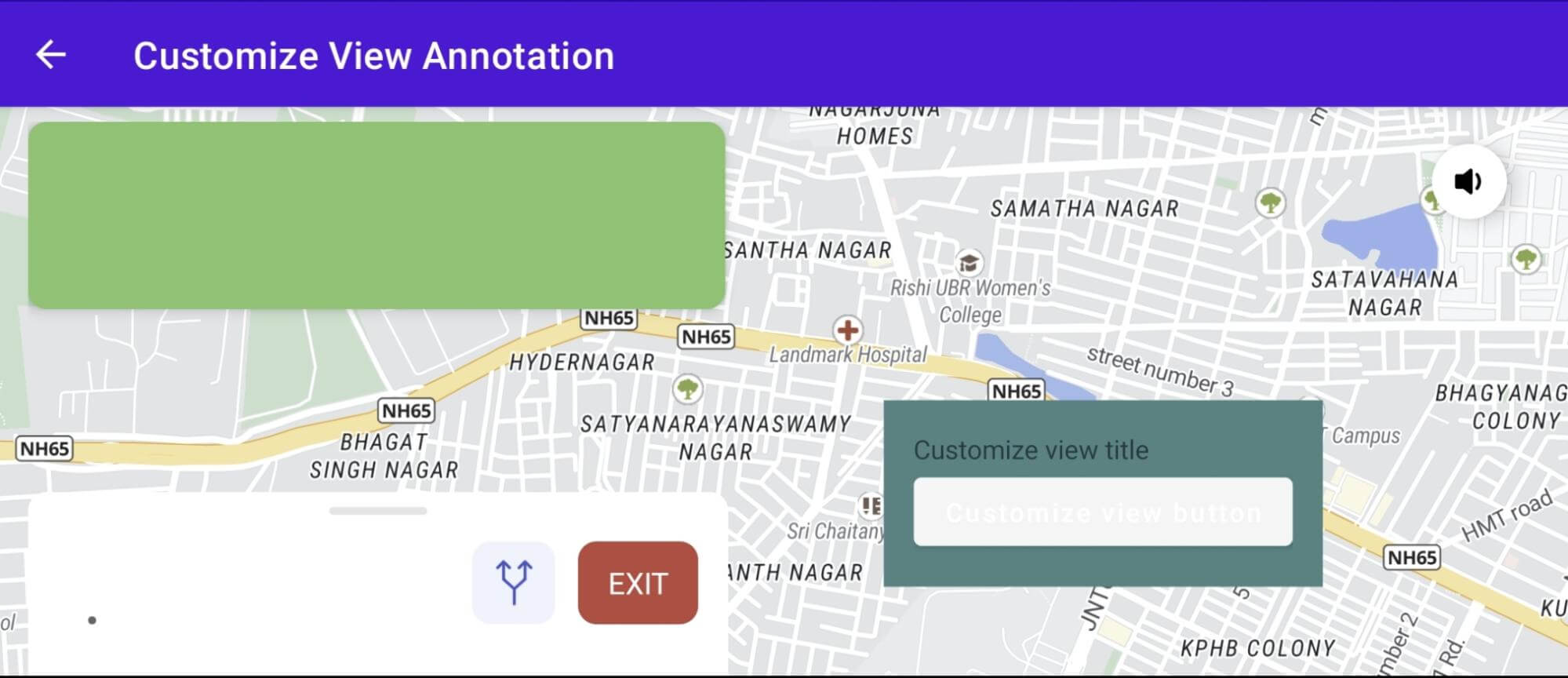
This example shows how to display InfoWindow on MapView by using Map View API. Follow the below steps to add InfoWindow:
1. Create a custom view for the InfoWindow:
```java
View infoWindowView = LayoutInflater.from(this).inflate(R.layout.layout_custom_info_window, navigationView, false);
```
2. Create an InfoWindow and display it on the MapView:
```java
InfoWindow infoWindow = navigationView.addInfoWindow(infoWindowView,new LatLng(17.49361551715865,78.39382912963629),0,0);
```
By following these steps, you can create a custom view for the InfoWindow and then add and display the InfoWindow on the MapView at a specific position with optional offset values for customization.
For all code examples, refer to [Navigation Code Examples](https://github.com/nextbillion-ai/nb-navigation-android-demo)
**activity_custom_add_view_annotation.xml**
```xml
```
**layout_custom_info_window.xml**
```xml
```
### CustomAddViewAnnotationActivity
```java
public class CustomAddViewAnnotationActivity extends AppCompatActivity implements OnNavigationReadyCallback {
private static final double DEFAULT_CAMERA_ZOOM = 14;
private NavigationView navigationView;
@Override
protected void onCreate(Bundle savedInstanceState) {
super.onCreate(savedInstanceState);
setContentView(R.layout.activity_custom_add_view_annotation);
navigationView = findViewById(R.id.navigation_view_fragment);
navigationView.onCreate(savedInstanceState);
navigationView.initialize(this);
}
@Override
public void onStart() {
super.onStart();
navigationView.onStart();
}
@Override
public void onResume() {
super.onResume();
navigationView.onResume();
}
@Override
public void onSaveInstanceState(@NonNull Bundle outState) {
navigationView.onSaveInstanceState(outState);
super.onSaveInstanceState(outState);
}
@Override
protected void onRestoreInstanceState(@NonNull Bundle savedInstanceState) {
super.onRestoreInstanceState(savedInstanceState);
if (savedInstanceState != null) {
navigationView.onRestoreInstanceState(savedInstanceState);
}
}
@Override
public void onPause() {
super.onPause();
navigationView.onPause();
}
@Override
public void onStop() {
super.onStop();
navigationView.onStop();
}
@Override
public void onLowMemory() {
super.onLowMemory();
navigationView.onLowMemory();
}
@Override
public void onDestroy() {
super.onDestroy();
navigationView.onDestroy();
}
@Override
public void onNavigationReady(boolean isRunning) {
View infoWindowView = LayoutInflater.from(this).inflate(R.layout.layout_custom_info_window,navigationView,false);
infoWindowView.findViewById(R.id.custom_button).setOnClickListener(new View.OnClickListener() {
@Override
public void onClick(View v) {
Toast.makeText(CustomAddViewAnnotationActivity.this, "click customize view button", Toast.LENGTH_SHORT).show();
}
});
// add InfoWindow on MapView
InfoWindow infoWindow = navigationView.addInfoWindow(infoWindowView,new LatLng(17.49361551715865,78.39382912963629),0,0);
// set InfoWindow click event
infoWindow.setOnInfoWindowClickListener(new InfoWindow.OnInfoWindowClickListener() {
@Override
public void onInfoWindowClick() {
super.onInfoWindowClick();
Toast.makeText(CustomAddViewAnnotationActivity.this, "on InfoWindow click", Toast.LENGTH_SHORT).show();
}
@Override
public void onInfoWindowLongClick() {
super.onInfoWindowLongClick();
Toast.makeText(CustomAddViewAnnotationActivity.this, "on InfoWindow long click", Toast.LENGTH_SHORT).show();
}
});
// close InfoWindow
//infoWindow.close();
CameraUpdate cameraUpdate = CameraUpdateFactory.newLatLngZoom(new LatLng(17.49361551715865,78.39382912963629), DEFAULT_CAMERA_ZOOM);
NavigationCameraUpdate navigationCameraUpdate = new NavigationCameraUpdate(cameraUpdate);
navigationCameraUpdate.setMode(CameraUpdateMode.OVERRIDE);
navigationView.retrieveNavNextbillionMap().retrieveCamera().update(navigationCameraUpdate, 1000);
}
}
```
### Code summary
The example code shows how to add a custom info window to a map. The info window contains a button that, when clicked, displays a toast message. The info window also has a click listener that displays a toast message when the info window is clicked. To add an info window to a map, you need to do the following:
1. Create a **View** object that will be used to display the info window.
2. Call the **addInfoWindow()** method of the **MapView** object, passing in the **View** object and the location of the info window.
3. Set a click listener for the info window.
The following code shows how to add an info window to a map:
```java
// Create a View object that will be used to display the info window.
View infoWindowView = LayoutInflater.from(this).inflate(R.layout.layout_custom_info_window, navigationView, false);
// Call the addInfoWindow() method of the MapView object, passing in the View object and the location of the info window.
InfoWindow infoWindow = navigationView.addInfoWindow(infoWindowView, new LatLng(17.49361551715865, 78.39382912963629), 0, 0);
// Set a click listener for the info window.
infoWindow.setOnInfoWindowClickListener(new InfoWindow.OnInfoWindowClickListener() {
@Override
public void onInfoWindowClick() {
Toast.makeText(CustomAddViewAnnotationActivity.this, "on InfoWindow click", Toast.LENGTH_SHORT).show();
}
});
```
The **onInfoWindowClick()** method will be called when the info window is clicked. This method can be used to perform any action that you want when the info window is clicked.
In the example code, the **onInfoWindowClick()** method displays a toast message when the info window is clicked.