# Query Features in box
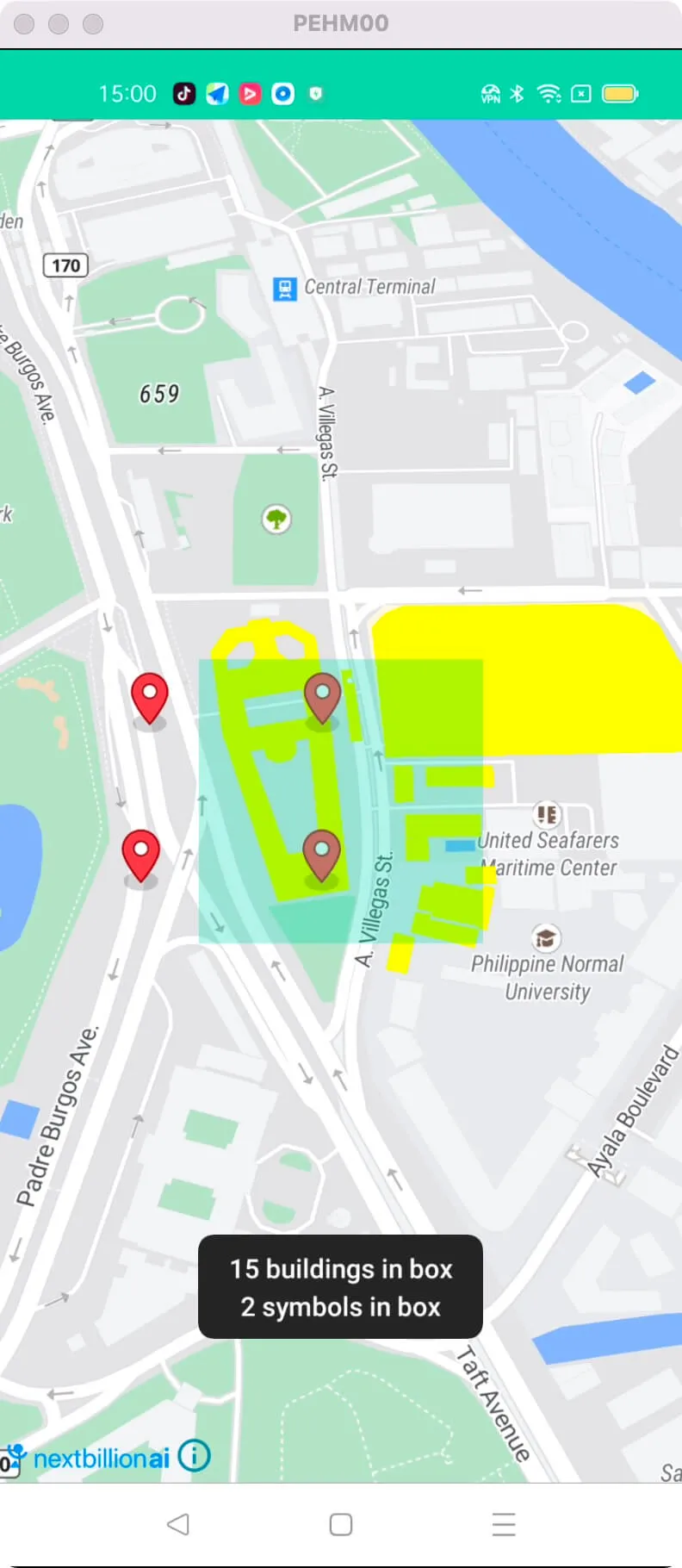
This example shows how to Query features in the box on MapView
- Query features about existing layer id and filter
- Query features about custom layer id
For all code examples, refer to [Android Maps SDK Code Examples](https://github.com/nextbillion-ai/nb-maps-android-demo)
**activity_query_feature_and_symbol.xml** [view source](https://github.com/nextbillion-ai/nb-maps-android-demo/blob/main/app/src/main/res/layout/activity_query_feature_and_symbol.xml)
```xml
```
**QueryFeatureAndSymbolActivity** [view source](https://github.com/nextbillion-ai/nb-maps-android-demo/blob/main/app/src/main/java/ai/nextbillion/QueryFeatureAndSymbolActivity.java)
```java
package ai.nextbillion;
import android.graphics.Bitmap;
import android.graphics.BitmapFactory;
import android.graphics.Color;
import android.graphics.RectF;
import android.os.Bundle;
import android.view.View;
import android.widget.Toast;
import java.io.IOException;
import java.util.List;
import ai.nextbillion.kits.geojson.Feature;
import ai.nextbillion.kits.geojson.FeatureCollection;
import ai.nextbillion.maps.camera.CameraPosition;
import ai.nextbillion.maps.camera.CameraUpdateFactory;
import ai.nextbillion.maps.core.MapView;
import ai.nextbillion.maps.core.NextbillionMap;
import ai.nextbillion.maps.core.Style;
import ai.nextbillion.maps.geometry.LatLng;
import ai.nextbillion.maps.style.expressions.Expression;
import ai.nextbillion.maps.style.layers.FillLayer;
import ai.nextbillion.maps.style.layers.Layer;
import ai.nextbillion.maps.style.layers.SymbolLayer;
import ai.nextbillion.maps.style.sources.GeoJsonSource;
import ai.nextbillion.utils.ResourceUtils;
import androidx.appcompat.app.AppCompatActivity;
import static ai.nextbillion.maps.style.expressions.Expression.get;
import static ai.nextbillion.maps.style.expressions.Expression.literal;
import static ai.nextbillion.maps.style.expressions.Expression.lt;
import static ai.nextbillion.maps.style.expressions.Expression.toNumber;
import static ai.nextbillion.maps.style.layers.PropertyFactory.fillColor;
import static ai.nextbillion.maps.style.layers.PropertyFactory.iconImage;
/**
* Demo's query rendered features
*/
public class QueryFeatureAndSymbolActivity extends AppCompatActivity {
public MapView mapView;
private NextbillionMap nextbillionMap;
@Override
protected void onCreate(Bundle savedInstanceState) {
super.onCreate(savedInstanceState);
setContentView(R.layout.activity_query_feature_and_symbol);
final View selectionBox = findViewById(R.id.selection_box);
// Initialize map as normal
mapView = (MapView) findViewById(R.id.mapView);
mapView.onCreate(savedInstanceState);
mapView.getMapAsync(nextbillionMap -> {
QueryFeatureAndSymbolActivity.this.nextbillionMap = nextbillionMap;
CameraPosition position = new CameraPosition.Builder()
.target(new LatLng(14.589503119868022, 120.98188196701062))
.zoom(16)
.bearing(0)
.tilt(30)
.build();
nextbillionMap.animateCamera(CameraUpdateFactory.newCameraPosition(position));
// Add layer / source
final GeoJsonSource source = new GeoJsonSource("highlighted-shapes-source");
final Layer layer = new FillLayer("highlighted-shapes-layer", "highlighted-shapes-source")
.withProperties(fillColor(Color.YELLOW));
selectionBox.setOnClickListener(view -> {
// Query
int top = selectionBox.getTop() - mapView.getTop();
int left = selectionBox.getLeft() - mapView.getLeft();
RectF box = new RectF(left, top, left + selectionBox.getWidth(), top + selectionBox.getHeight());
Expression filter = lt(toNumber(get("height")), literal(10));
List features = nextbillionMap.queryRenderedFeatures(box, filter, "building");
List symbols = nextbillionMap.queryRenderedFeatures(box, "symbols-layer");
// Show count
Toast.makeText(
QueryFeatureAndSymbolActivity.this,
String.format("%s buildings in box\n%s symbols in box", features.size(), symbols.size()),
Toast.LENGTH_SHORT).show();
// Update source data
source.setGeoJson(FeatureCollection.fromFeatures(features));
});
nextbillionMap.setStyle(new Style.Builder()
.fromUri(StyleConstants.NBMAP_STREETS)
.withSource(source)
.withLayer(layer)
, style -> addSymbolLayer(style));
});
}
public void addSymbolLayer(Style style) {
try {
String testPoints = ResourceUtils.readRawResource(mapView.getContext(), R.raw.test_points_utrecht);
Bitmap markerImage = BitmapFactory.decodeResource(getResources(), R.drawable.nbmap_marker_icon_default);
style.addImage("test-icon", markerImage);
style.addSource(new GeoJsonSource("symbols-source", testPoints));
style.addLayer(new SymbolLayer("symbols-layer", "symbols-source")
.withProperties(
iconImage("test-icon")
));
} catch (IOException exception) {
exception.printStackTrace();
}
}
public NextbillionMap getNextbillionMap() {
return nextbillionMap;
}
@Override
protected void onStart() {
super.onStart();
mapView.onStart();
}
@Override
protected void onResume() {
super.onResume();
mapView.onResume();
}
@Override
protected void onPause() {
super.onPause();
mapView.onPause();
}
@Override
protected void onStop() {
super.onStop();
mapView.onStop();
}
@Override
protected void onSaveInstanceState(Bundle outState) {
super.onSaveInstanceState(outState);
mapView.onSaveInstanceState(outState);
}
@Override
protected void onDestroy() {
super.onDestroy();
mapView.onDestroy();
}
@Override
public void onLowMemory() {
super.onLowMemory();
mapView.onLowMemory();
}
}
```
The given code is an Android activity that demonstrates how to initialize a MapView, query features on a map, and display the results.
Initializing the MapView:
- The **onCreate** method initializes the MapView by setting the content view and obtaining a reference to it using findViewById.
- The onCreate method also calls **mapView.onCreate(savedInstanceState)** to create the **MapView** and **mapView.getMapAsync(this)** to get a reference to the **NextbillionMap** instance when it is ready.
Querying Features of an Existing Layer:
- The code sets up a map and adds a layer called **"highlighted-shapes-layer"** with a source named **"highlighted-shapes-source"**.
- The selectionBox view is used to define a rectangular area on the map.
- When the selectionBox is clicked, the **queryRenderedFeatures** method is called to query the features within the defined **area**.
- The queried features are **filtered** based on a condition (in this case, the height is less than 10) using an Expression.
- The queried features are displayed in a toast message.
Querying Features of a Custom Layer:
- The code adds a custom symbol layer to the map, which is based on a **GeoJSON** source named "symbols-source".
- The addSymbolLayer method reads **GeoJSON** data from a resource file and adds it as a source and layer to the map style.
- The **queryRenderedFeatures** method is used to query the features within the defined area for the **"symbols-layer"** specifically.
- The queried features are displayed in a toast message.
Other Lifecycle Methods: The code also includes various lifecycle methods **(onStart, onResume, onPause, onStop, onSaveInstanceState, onDestroy, onLowMemory)** that should be implemented when using the MapView to properly manage its lifecycle and handle configuration changes.
**Note**: The code uses the Nextbillion Maps SDK and NextbillionMap class to handle map-related operations. It also utilizes the Style class to define the map's visual style, GeoJsonSource class to add data sources, and various layer classes to display map features.